Arduino to Blender (010; 28.07.2009; arduino, blender)
Arduino to Blender 1.0 from MyInventions on Vimeo.
Required:
Blender 2.49a (http://www.blender.org/download/get-blender/)
Python 2.6.2 (http://www.python.org/download/releases/2.6.2/)
pywin32-214 (pywin32-214.win32-py2.6.exe; http://sourceforge.net/projects/pywin32/files/)
pySerial 2.4 (pyserial-2.4.win32.exe ; http://sourceforge.net/projects/pyserial/files/)
Pythona 2.6.2 is required for Blender 2.49a. Pywin32 library incerease Python options for Windows. PySerial library let us Serial communication.
Reciving informations from serial port in Blender.
import serial

serialport = serial.Serial('COM4', 9600)

for i in range(1, 20):
	x = serialport.read(size=1)
	y = ord(x)
	print "y=", y

else:
	serialport.close()
Put it in Blender Text Editor. Run this script with alt+p or menu Text/Run Python Script.
Download: SerialTest.blend
Edit Blender object with script.
Translate and rotate object with serial port:
import serial
import Blender

serialport = serial.Serial('COM4', 9600)
ob = Blender.Object.Get ('Cube')
Blender.Window.WaitCursor(1)

for i in range(1, 100):
	x = serialport.read(size=1)
	y = 0.01*ord(x)
	#print "y=", y
	ob.setLocation(0,2*y,2.55)
	ob.setEuler(0,0,y)
	ob.setSize(0.5+y,0.5+y,0.01+y)
	Blender.Redraw()
else:
	serialport.close()
	Blender.Window.WaitCursor(0)
30Hz data rate is good and maximum is 65Hz.
Serial communication in Blender Game Engine.

SerialBGE.py source:
import serial
import GameLogic
ser = serial.Serial('COM4', 9600)
contr = GameLogic.getCurrentController()
location=contr.actuators["loc"]
x = ser.read(size=1)
y = 0.010*(ord(x)-128)
print "y=", y
location.dLoc=[y,0,0]
contr.activate(location)
ser.close()
You could code Arduino to send max. 2Hz data - this script restart Arduino every time starts.
Communication with text-file.
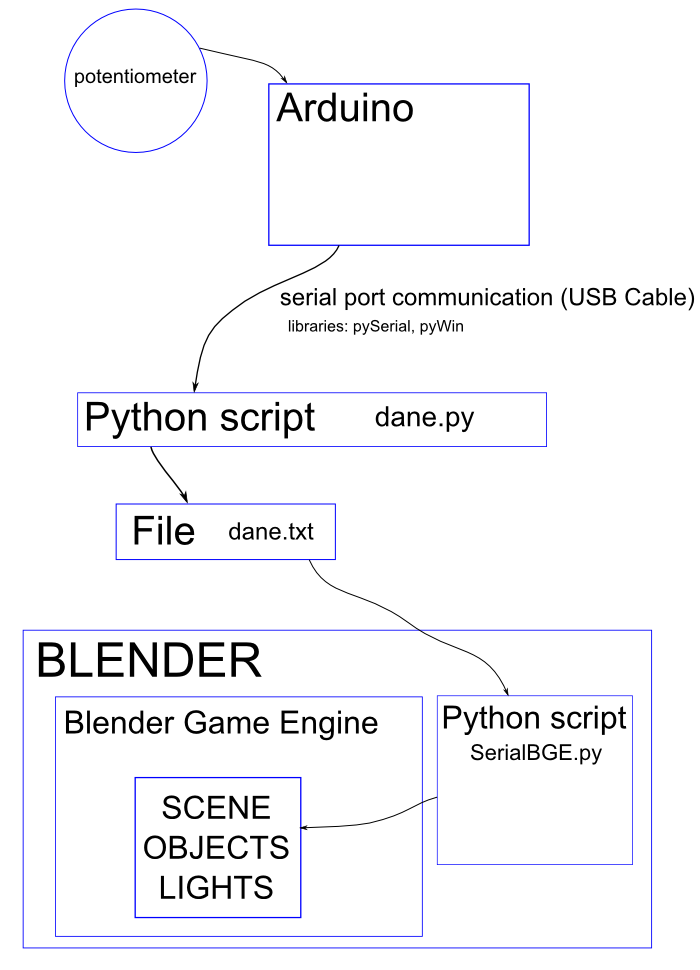
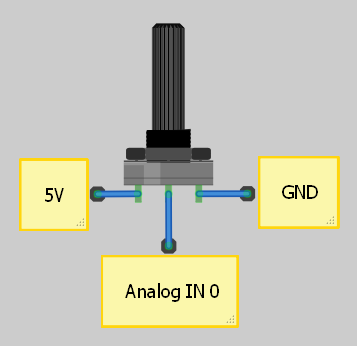
1. Code Arduino with data rate 25Hz:
void setup()
{
  Serial.begin(9600);
}

void loop()
{
  Serial.print(analogRead(0)/4, BYTE);
  delay(40);
}
2. Generate text file dane.txt and python script dane.py:
import serial

port = serial.Serial('COM4', 9600)

for i in range(0, 10):
    dane=open('dane.txt', 'r+b')
    x = port.read(size=1)
    print x
    dane.write(x)
    dane.close()

port.close()
Test it.
3. Generate new Blender scene. For object put sensor Always, controller Python and actuator Motion. For sensor switch Pulse Mode - True Level Triggering with f:3. SerialBGE.py for controller:
import GameLogic

dane=open('dane.txt', 'rb')
x=dane.read()
dane.close()
print x

contr = GameLogic.getCurrentController()
location=contr.actuators["loc"]
y = 0.001*(ord(x)-128)
location.dLoc=[y,0,0]
contr.activate(location)
4. Put dane.txt, dane.py and Blender scene in common folder.
Source files: dane.py, SerialBGE2.blend
Think about sending data with high frequency (for example: using Com0com virtual serial port pair emulator) and sending more than 8bits characters.
Pythona for Blender2.49 documentation:
http://www.blender.org/documentation/249PythonDoc/
Pythona for Blender Game Engine2.49 documentation:
http://www.blender.org/documentation/249PythonDoc/GE/
http://www.tutorialsforblender3d.com/GameDoc/index_GameDoc.html
PySerial documentation:
http://pyserial.sourceforge.net/pyserial.html; http://pyserial.wiki.sourceforge.net/pySerial
Pywin32 site: http://python.net/crew/mhammond/win32/
Sorry, more detailed translation is not yet available...

